Onboard sellers before payment
How it works
You can connect your sellers with PayPal before they accept PayPal payments from payers on your platform.
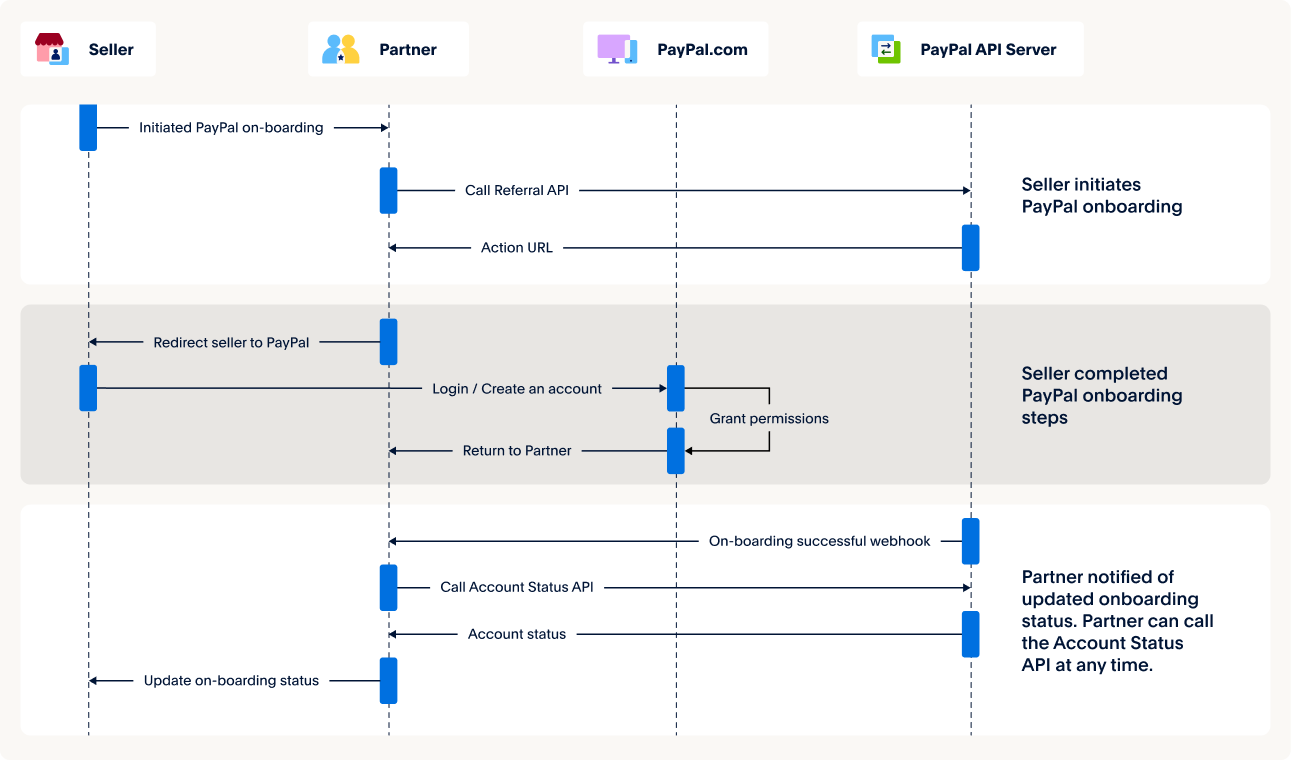
Know before you code
To use this integration, you must:
- You must be an approved partner to use this integration.
- You must have an access token .
- This integration uses the Partner Referrals API
- Inform your sellers of PayPal's Seller Protection policy , so they are aware of use cases that invalidate that protection, such as shipping to an address other than the one in the transaction confirmation.
Set up webhooks
Webhooks are HTTP callbacks that receive notification messages for events. You can subscribe to webhooks from the developer portal or by making an API call.
You’ll need to subscribe to the following webhooks for onboarding:
- MERCHANT.ONBOARDING.COMPLETED : This webhook is triggered when the seller has fulfilled all onboarding required and has given you permissions.
- MERCHANT.PARTNER-CONSENT.REVOKED : This webhook is triggered when the seller has removed your permissions.
To subscribe to webhooks from your developer portal:
- Select Apps & Credentials .
- Select the name of your REST app.
- Go to Sandbox Webhooks > Add Webhook .
- Enter the URL for your listener.
- Add the event name by clicking the associated check boxes and select Save .
To subscribe to webhooks by making an API call, see Webhooks for the sample requests and responses.
Pass your seller’s information in the Partner Referrals API call. The PayPal signup flow will automatically fill with your seller’s information. Generate a signup link that redirects your sellers to sign up with PayPal.
Modify the code
Copy the sample request and modify it as follows:
- Replace ACCESS-TOKEN with your access token.
- Replace BN-CODE to your PayPal Attribution ID to receive revenue attribution. To find your BN code, see Code and Credential Reference.
-
Set products to the type of payment you want for your sellers. The products array value determines which payment types your sellers can accept. For more information, see products in the Partner Referrals API page. The 2 payment types include:
-
EXPRESS_CHECKOUT includes debit and credit cards
- PPCP includes the PayPal button and advanced credit and debit cards. Sellers can also accept alternative payment methods such as Pay upon Invoice.
Optional: Pass a tracking ID in the TRACKING-ID field. You can use this ID to track the status of your seller as they complete onboarding. For more information, see TRACKING-ID in the List seller tracking information page.
Sample request and response
Sample request
curl -v -X POST https://api-m.sandbox.paypal.com/v2/customer/partner-referrals \
  -H "Content-Type: application/json" \
  -H "Authorization: Bearer ACCESS-TOKEN" \
  -d '{
"tracking_id": "TRACKING-ID",
"operations": [{
    "operation": "API_INTEGRATION",
    "api_integration_preference": {
        "rest_api_integration": {
            "integration_method": "PAYPAL",
            "integration_type": "THIRD_PARTY",
            "third_party_details": {
                "features": [
                    "PAYMENT",
                    "REFUND"
                ]
            }
        }
    }
}],
"products": [
    "EXPRESS_CHECKOUT"
],
"legal_consents": [{
    "type": "SHARE_DATA_CONSENT",
    "granted": true
}]
}
'
Sample response
{
  "links": [
    {
      "href": "https://api-m.sandbox.paypal.com/v2/customer/partner-referrals/NDZlMjQ1YTItMGQwNi00ZjlkLWJjNmYtYjcwODNiMWEzOTk0c203SWFJeU9NQ3gvcDEvbUVaS21rWFAvSWdlV1JKWktGRGxPUFA1MEZtUT12Mg==",
      "rel": "self",
      "method": "GET",
      "description": "Read referral data shared by the caller."
    },
    {
      "href": "https://www.sandbox.paypal.com/partnerexp/appEntry?referralToken=ZGY2M2NjN2YtMjFhZi00NzBjLTlmMzMtNGU3NWNjNWM0ZjE4SlVTSEFJRG9vSmQ4QVpQVDFxaFUzbjhNWlBjemhHLy96VWFwNHp3amJkST12Mg==",
      "rel": "action_url",
      "method": "GET",
      "description": "Target WEB REDIRECT URL for the next action. Customer should be redirected to this URL in the browser."
    }
  ]
}
Step result
A successful request results in the following:
- A return status code of HTTP 201 Created.
- A HATEOAS self link. Make a GET request to this link to retrieve the referral data and to reinitialize the action_url.
- A HATEOAS action_url link. Make a note of this link. The link can be placed in a button or link tag to redirect your sellers to sign up with PayPal. The action_url expires after one use. Refresh the link by making a GET request to the self link or by making another Partner Referrals API call.
info Note: If you call GET /v2/customer/partner-referrals/{partner_referral_id}, the response only returns the user data you have passed for the seller. It won’t return any data the seller might have provided on paypal.com.
Insert the action_url in a button or a link to redirect the seller to the PayPal signup page.
You can also render the PayPal signup flow in a mini-browser by using the following code:
Add signup link to your site
<div dir="ltr" style="text-align: left;" trbidi="on">
  <script>
    (function(d, s, id) {
      var js, ref = d.getElementsByTagName(s)[0];
      if (!d.getElementById(id)) {
        js = d.createElement(s);
        js.id = id;
        js.async = true;
        js.src = "https://www.paypal.com/webapps/merchantboarding/js/lib/lightbox/partner.js";
        ref.parentNode.insertBefore(js, ref);
      }
    }(document, "script", "paypal-js"));
  </script>
  <a data-paypal-button="true" href="<Action-URL>&displayMode=minibrowser" target="PPFrame">Sign up for PayPal</a>
</div>
After your seller signs up, they are redirected to the return URL you specified in the partner_config_override/return_url field of the Partner Referrals API . If you don’t specify a return URL, then the seller is redirected to the PayPal dashboard for their account.
The following code sample redirects the seller back to your site in the Partner Referrals API.
Sample request
Redirect seller to a return URL
https://<Return-URL>?merchantId=<Tracking-ID>&merchantIdInPayPal=<Merchant-ID-In-PayPal>&permissionsGranted=true&accountStatus=BUSINESS_ACCOUNT&consentStatus=true&productIntentId=addipmt&isEmailConfirmed=true&returnMessage=To%20start%20accepting%20payments,%20please%20log%20in%20to%20PayPal%20and%20finish%20signing%20up.
- SUBSCRIBED: Product provisioning is complete and no additional details are required.
- SUBSCRIBED_WITH_LIMIT: Product provisioning is complete with a feature limitation, such as atransaction limit.
- IN_REVIEW: Review is in progress for product provisioning.
- NEED_MORE_DATA: The merchant needs to provide supplementary data for product provisioning.
- DENIED: Not approved. The merchant needs to try again. |
Onboarding is complete when the seller has done the following:
- Created a PayPal account.
- Granted you permission for the features you set.
- Confirmed the email address of the account.
Make a show seller status call to track your seller’s onboarding status.
You can receive a notification when your seller completes onboarding by subscribing to the MERCHANT.ONBOARDING.COMPLETED webhook. This webhook is triggered when the seller has fulfilled all onboarding requirements.
Modify the code
Copy the sample request and modify it as follows:
- Replace ACCESS-TOKEN with your access token.
- Replace PARTNER-MERCHANT-ID with your merchant ID. - To get your merchant ID, log in to your PayPal account at paypal.com . Hover over your name or profile icon on the top right and select Account Settings > Business information > PayPal Merchant ID .
-
To find the merchant ID of your sandbox account, follow the same instructions on sandbox.paypal.com .
-
Replace SELLER-MERCHANT-ID with the merchant ID of the seller’s PayPal account. - To get your seller’s merchant ID, look at the merchantIdInPayPal query parameter attached to the return URL when the seller is redirected back to your site. You can also query it directly by the tracking ID you specified in the Partner Referrals call by calling GET /v1/customer/partners/partner_id/merchant-integrations?tracking_id={tracking_id} . For more information, see List seller tracking information .
Sample request and response
In the response, products is set to PPCP_CUSTOM .
Sample request
curl -v -X GET https://api-m.sandbox.paypal.com/v1/customer/partners/{partner_merchant_id}/merchant-integrations/{seller_merchant_id} \
  -H "Content-Type: application/json" \
  -H "Authorization: Bearer ACCESS-TOKEN"
Step result
A successful request results in the following:
- A return status code of HTTP 200 OK .
- A JSON response body that shows referral data. This response body does not return user data but returns information on whether the merchant is onboarded and is eligible to process transactions.
- The payments_receivable is true.
- The primary_email_confirmed is true.
- The oauth_third_party contains permissions granted.
Sample Response
In this response, products is set to Express_Checkout .
Response Express_Checkout
{
  "merchant_id": "5VT3RDX64P5Z6",
  "tracking_id": "{{tracking_id}}",
  "products": [{
      "name": "EXPRESS_CHECKOUT",
      "status": "ACTIVE"
          },
    {
      "name": "PPCP_STANDARD",
      "vetting_status": "SUBSCRIBED",
      "capabilities": [
        "INSTALLMENTS",
        "SUBSCRIPTIONS",
        "ACCEPT_DONATIONS",
        "PAYPAL_CHECKOUT",
        "GUEST_CHECKOUT",
        "PAYPAL_CHECKOUT_ALTERNATIVE_PAYMENT_METHODS",
        "SEND_INVOICE",
        "QR_CODE",
        "WITHDRAW_FUNDS_TO_DOMESTIC_BANK",
        "PAYPAL_CHECKOUT_PAY_WITH_PAYPAL_CREDIT"
      ]
    }
  ],
  "capabilities": [{
      "name": "INSTALLMENTS",
      "status": "ACTIVE"
    },
    {
      "name": "PAYPAL_CHECKOUT",
      "status": "ACTIVE"
    },
    {
      "name": "SEND_INVOICE",
      "status": "ACTIVE"
    },
    {
      "name": "ACCEPT_DONATIONS",
      "status": "ACTIVE"
    },
    {
      "name": "SUBSCRIPTIONS",
      "status": "ACTIVE"
    },
    {
      "name": "PAYPAL_CHECKOUT_PAY_WITH_PAYPAL_CREDIT",
      "status": "ACTIVE"
    },
    {
      "name": "GUEST_CHECKOUT",
      "status": "ACTIVE"
    },
    {
      "name": "QR_CODE",
      "status": "ACTIVE"
    },
    {
      "name": "PAYPAL_CHECKOUT_ALTERNATIVE_PAYMENT_METHODS",
      "status": "ACTIVE"
    }
  ],
  "payments_receivable": true,
  "legal_name": "Firstname Lastname",
  "primary_email": "test@example.com",
  "primary_email_confirmed": false,
  "oauth_integrations": [{
    "integration_type": "OAUTH_THIRD_PARTY",
    "integration_method": "PAYPAL",
    "oauth_third_party": [{
      "partner_client_id": "B_AhEDQSJmQb9fK4lIyGOQZEwPVBrrk44Fz2vjfXmv2Tpuc1pt16Mb9h6Ua9pnq1SYvjSy1fOuKXFA2NLw",
      "merchant_client_id": "B_AGDGPKGC1P28B65QYRvOmmNe-7JKnEMqIt_H_CMFsXAR_ZuaSLaQBtIKiatmJsv5_ZtxLvp_qPkptoHg",
      "scopes": [
        "https://uri.paypal.com/services/payments/realtimepayment",
        "https://uri.paypal.com/services/reporting/search/read",
        "https://uri.paypal.com/services/payments/refund",
        "https://uri.paypal.com/services/customer/merchant-integrations/read",
        "https://uri.paypal.com/services/payments/payment/authcapture"
      ]
    }]
  }],
  "primary_currency": "USD",
  "country": "US"
}
Sample Response
In this response, products is set to PPCP_CUSTOM .
Response PPCP_CUSTOM
{
  "merchant_id": "CG5RZJV4NR5P4",
  "tracking_id": "1537989077589",
  "products": [
    {
      "name": "PPCP_CUSTOM"
    }
  ],
  "payments_receivable": true,
  "primary_email_confirmed": true,
  "products.vetting status": "SUBSCRIBED",
  "capabilities[name==CUSTOM_CARD_PROCESSING].status": "ACTIVE",
  "capabilities[name==CUSTOM_CARD_PROCESSING].limits": "undefined",
  "oauth_integrations": [{
    "integration_type": "OAUTH_THIRD_PARTY",
    "integration_method": "PAYPAL",
    "oauth_third_party": [
      {
        "partner_client_id": "Af1bGDNgFBtbJvzEkG25zt4SoNQQ3ustiLm84GWXxe8nq_HE_0wCQ9SH8M1ScmSBURBIzPiCjr5gu-Dq",
        "merchant_client_id": "AQ7u3fJkUH4cdCEBidsh5U_F1RQCGjglJQdNEEsXCzvQsGsS5MmC8Dk7_ug_IlkUASJezaGqQxQQfVhQ",
        "scopes": ["https://uri.paypal.com/services/payments/realtimepayment", "https://uri.paypal.com/services/payments/refund", "https://uri.paypal.com/services/payments/payment/authcapture"]
      }
    ]
  }]
}
Use URL onboarding only if you have already onboarded with URL onboarding or if you have a specific use case for URL onboarding. With URL onboarding, sellers are required to complete all signup fields. Sellers must also have a PayPal business account. Casual sellers are not supported.
Note: For new integrations, use the Partner Referrals API to onboard your sellers.
Example URL
Example URL
https://www.paypal.com/bizsignup/partner/entry?&partnerClientId=<var><partnerClientId></var>&partnerId=<var><merchantId></var>&partnerLogoUrl=<var>&<partnerLogoUrl></var>&returnToPartnerUrl=<var><returnToPartnerUrl></var>&product=ppcp&integrationType=TO&features=PAYMENT,REFUND</var>
Reference
| Parameter | Description |
|---|---|
| channelId | Set topartner. |
| partnerId | The merchant ID of your PayPal account. To find the merchant ID of your PayPal account, log in to your PayPal account atpaypal.com. Hover over your name or profile icon on the top right and selectAccount Settings>Business information>PayPal Merchant ID. To find the merchant ID of your sandbox account, follow the same instructions onsandbox.paypal.com. |
| partnerClientId | Your client ID. |
| returnToPartnerUrl | The URL you want to redirect your seller to after completing signup. Not specifying a return URL in this signup link follows the same behavior as not specifying a return URL when calling the Partner Referrals API. |
| partnerLogoUrl | The URL for the logo to be displayed during the onboarding process. This applies only if you're not loading the signup flow in a mini-browser. If you do not specify a logo URL in this signup link, the logo URL set on your account will be used. You can work with your account manager to set the logo URL on your account. |
| merchantId | The unique ID of the seller in your system. |
| productIntentId | Set toaddipmt. |
| features | The permissions a seller grants you to operate on their PayPal account. If you do not specify features in this signup link, the features enabled for your account are used. Work with your account manager to enable features. |
| showPermissions | A Boolean that if set totrueshows permissions in the onboarding flow. |
| integrationType | The type of integration between you and your sellers. To specifyOAUTH_THIRD_PARTY, set toTO. |
Next steps
Accept Payments
Choose your payment method.